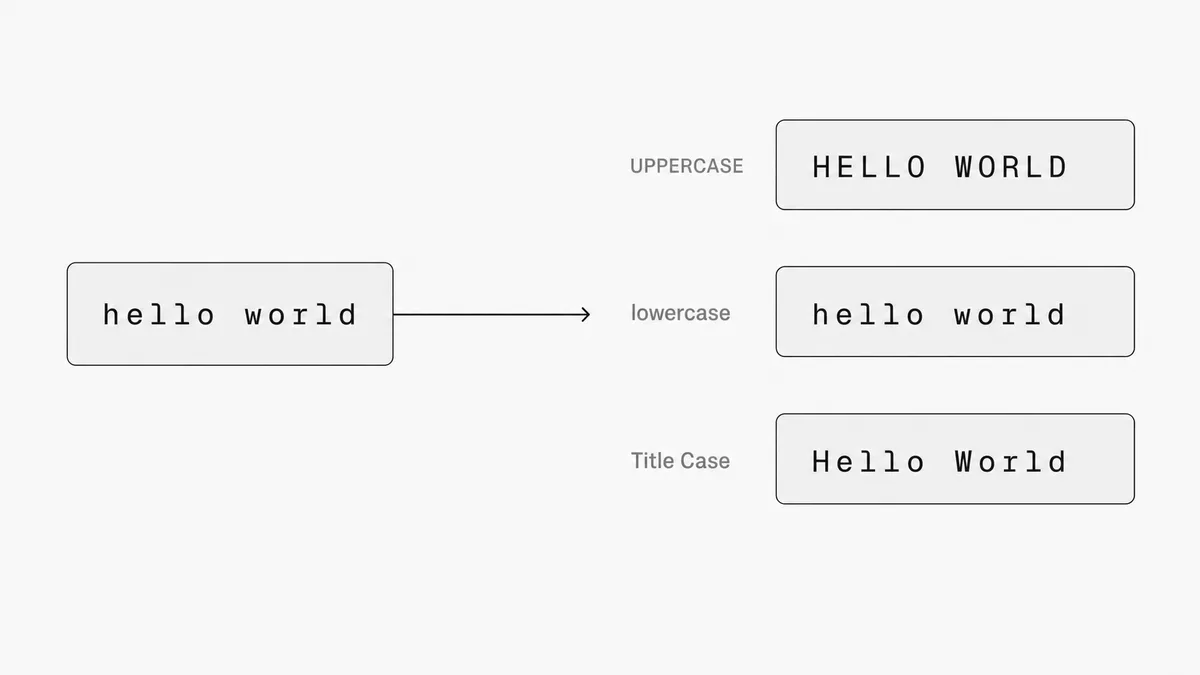
Every major office app has a way to change text case, but none of them make it obvious, and all of them cap out at three formats. Here's the fastest method for each platform, and when to skip them entirely.
Quick method summary
| Platform | Fastest method | Formats available | Keyboard shortcut |
|---|---|---|---|
| Microsoft Word | Change Case button or Shift+F3 | 5 options | Shift+F3 (Win) / fn+Shift+F3 (Mac) |
| Google Docs | Format → Text → Capitalization | 3 options | None built-in |
| Excel | UPPER / LOWER / PROPER formulas | 3 options | No shortcut |
| macOS | Edit → Transformations | 3 options | None |
If you need anything beyond UPPERCASE, lowercase, or Title Case (camelCase, snake_case, PascalCase, SCREAMING_SNAKE_CASE), none of these platforms can help you. Jump to the last section or go straight to the converter.
How to change text case in Excel
Excel is the awkward one. Every other app on this list has a button or menu item. Excel doesn't. Microsoft built it as a spreadsheet: it processes cell values with formulas, not a formatting toggle. Which means converting case in Excel requires a few more steps than it should.
Method 1: UPPER, LOWER, and PROPER functions
This is the standard approach. Three functions, each doing exactly what the name says:
=UPPER(A2)    → HELLO WORLD
=LOWER(A2)    → hello world
=PROPER(A2)   → Hello World
The catch: you can't apply the formula to the same cell you're reading from. You need a helper column.
Here's the full workflow:
- Insert a blank column next to the one you want to convert
- Enter your formula in the first cell of the new column (e.g.
=UPPER(A2)) - Double-click the small square at the bottom-right of the cell to fill the formula down
- Select the new column and press Ctrl+C (Win) or Cmd+C (Mac) to copy
- Right-click on the original column → Paste Special → Values Only
- Delete the helper column
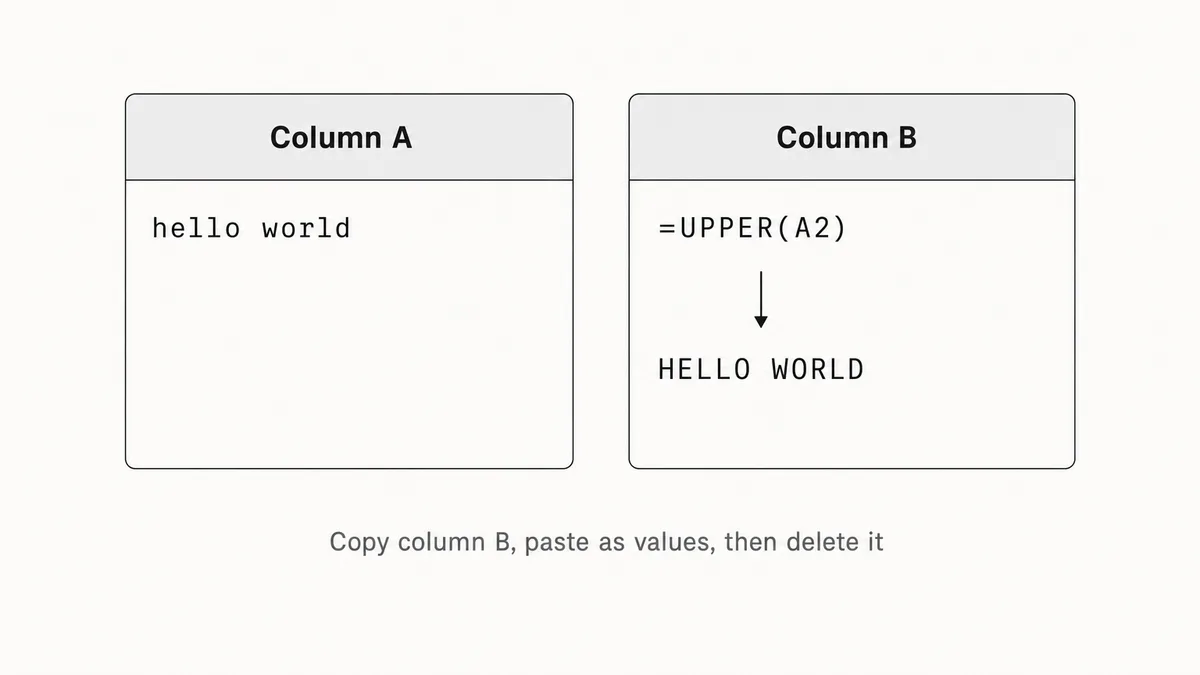
That's six steps. For what should be one click. Nobody explains this upfront, so you usually discover steps 4 and 5 the hard way when you try to delete the helper column and suddenly your original column is full of #REF! errors.
Method 2: Flash Fill
If you're doing a one-off conversion of a short column, Flash Fill is faster.
- Type the converted version of your first cell in the adjacent column (e.g. if A2 is
hello world, typeHello Worldin B2) - Start typing the next one in B3
- Press Ctrl+E (Win) or Cmd+E (Mac) and Excel fills the rest automatically
Flash Fill works by recognising the pattern from your examples. It doesn't always get it right on complex data, but for simple case changes it's reliable and much faster than the formula method.
Most people don't know Flash Fill exists. If you do, use it. If you don't, and you've been doing the formula workflow for years, it's worth trying.
Method 3: Power Query (for recurring imports)
If your source data comes in the wrong case regularly (a CSV export from another system, a database dump), set up a Power Query transform once and it runs automatically each time you refresh.
Data tab → Get Data → From Table/Range → right-click the column → Transform → UPPERCASE / lowercase / Capitalize Each Word.
This is overkill for a one-time job. It's the right tool when you're building a repeatable data pipeline.
The honest take: Excel is genuinely bad at this. The formula method works but it's fiddly, and Flash Fill only handles the three basic formats. If you're converting a large block of text, or you need a format Excel doesn't have, paste it into the free converter and be done in five seconds.
How to change text case in Microsoft Word
Word is the easy one.
The ribbon button
Home tab → Font group → Change Case (the Aa icon). Click it and you get five options:
- Sentence case
- lowercase
- UPPERCASE
- Capitalize Each Word
- tOGGLE cASE
Select your text first, then pick an option. Done.
Shift+F3: the faster way
Select your text and press Shift+F3. It cycles through Sentence case → UPPERCASE → lowercase. Keep pressing to cycle through.
On Mac: fn+Shift+F3.
If your hands are already on the keyboard, this is faster than reaching for the ribbon. It's one of those shortcuts that's been in Word for decades and still surprises people who've been using Word for decades.
One thing to know: Shift+F3 only cycles through three options. If you want Capitalize Each Word or tOGGLE cASE, you need the ribbon button.
The Word-as-helper-for-Excel trick
If you're on Excel and don't want to deal with formulas: copy the Excel cells → paste into a blank Word document → select all → use Change Case → copy back to Excel.
It's a workaround, but it genuinely works. Useful when you're already familiar with Word's interface and the formula method is giving you trouble.
How to change text case in Google Docs
Format → Text → Capitalization
Select your text → Format → Text → Capitalization → choose lowercase, UPPERCASE, or Title Case.
That's the whole built-in workflow. Three options, no shortcuts.
Is there a keyboard shortcut in Google Docs?
No. Shift+F3, which works in Word, does nothing in Google Docs. This catches people out regularly, and a few articles online incorrectly say it works. It doesn't.
If you spend a lot of time in Google Docs and need case conversion often, the Change Case add-on (free, available via Extensions → Add-ons → Get add-ons) adds Sentence case and a smarter Title Case that correctly handles prepositions and articles. Worth installing if you edit documents regularly. Not worth it for occasional use.
Copy to the converter and back
For anything more than the three built-in options, the practical workflow is: select text → copy → paste into the converter → convert → paste back. Faster than installing and learning an add-on if you only need it occasionally.
How to change text case on a Mac
If you're on a Mac and using a native app (TextEdit, Notes, Mail, Pages), select your text and go to Edit → Transformations → Make Upper Case / Make Lower Case / Capitalize.
This is a system-level feature, not specific to one app. It works anywhere the Edit menu appears in a native macOS application.
That said, macOS is a minority platform globally. If you're on Windows (which most people are), none of this applies. Skip to the next section.
The 3-format ceiling
Here's the thing all four platforms have in common: UPPERCASE, lowercase, and Title/Proper Case. That's where the built-in tools stop.
If you're a developer or work with technical content, those three formats don't cover what you actually need:
| Format | Example | Where it's used |
|---|---|---|
| camelCase | convertTextCase | JavaScript variables, JSON keys |
| snake_case | convert_text_case | Python, Ruby, SQL column names |
| PascalCase | ConvertTextCase | React components, C# classes, TypeScript |
| kebab-case | convert-text-case | URL slugs, CSS class names, HTML attributes |
| SCREAMING_SNAKE_CASE | CONVERT_TEXT_CASE | Environment variables, constants |
None of Excel, Word, Google Docs, or macOS can produce any of these. They're not edge cases; they're the standard formats for most programming work.
The free converter at myconvertcase.com handles all 13 formats. Paste your text, pick a format, copy the result. No formulas, no helper columns, no add-ons.
FAQ
Does Excel have a Change Case button? No. Unlike Microsoft Word, Excel doesn't have a built-in Change Case button. You use UPPER, LOWER, or PROPER functions in a helper column, then paste as values and delete the helper column. Flash Fill (Ctrl+E) is faster for short one-off conversions.
What is the keyboard shortcut to change case in Word? Shift+F3 cycles through Sentence case → UPPERCASE → lowercase. Select the text first. On Mac, use fn+Shift+F3. It's faster than clicking the ribbon Change Case button.
How do I change text to lowercase in Google Docs? Select your text → Format → Text → Capitalization → lowercase. There's no keyboard shortcut; Shift+F3 only works in Microsoft Word, not Google Docs.
How do I change text case on a Mac? Select your text → Edit → Transformations → Make Upper Case / Make Lower Case / Capitalize. Works in TextEdit, Notes, Mail, Pages, and most native macOS apps.
What if I need camelCase or snake_case? None of the built-in tools in Excel, Word, Google Docs, or macOS support developer formats. Use the free text case converter; it handles 13 formats including camelCase, snake_case, PascalCase, kebab-case, and SCREAMING_SNAKE_CASE.
Which method is fastest for Excel? Flash Fill (Ctrl+E) is fastest for short columns if you know it. For longer datasets or recurring imports, UPPER/LOWER/PROPER formulas with paste-as-values or Power Query are more reliable. For anything where you'd rather not deal with Excel at all, paste the text into the converter.